
How it works
Welcome to Picture The Words! Our platform combines visual learning, contextual examples, and interactive tools to help you build lasting vocabulary across multiple languages.
Getting Started: Installing the Browser Extension
The browser extension is desktop only — it runs on Chrome, Edge, and Brave on laptops and desktops. Browser extensions of this kind don't install on phones or tablets at all, which is a limit of those platforms rather than of this extension. You are not stuck without lookup there: see On Phones and Tablets below, where the website itself takes the extension's place. What is genuinely desktop-only is hovering, since it needs a mouse.
Get it on the Chrome Web Store
- On Edge only: go to
edge://extensionsand turn on Allow extensions from other stores first — Edge blocks Chrome Web Store installs until this is enabled. Chrome and Brave don't need this step. - Click the button above to open the listing, then click Add to Chrome (this is the Chrome Web Store's own button label — it installs correctly on Edge and Brave too, the wording doesn't change per browser).
- Confirm the permissions prompt — the extension needs to read page text to show a lookup on hover.
- Pin the icon (the puzzle-piece icon in your toolbar, then the pin next to Picture the Words) so it stays visible.
- Click it once to confirm it's active. That's it — no download, no unzipping, no developer mode.
Good to know before you start:
- Currently built and tested for Chrome and other Chromium-based browsers (Edge, Brave). Firefox and Safari support isn't available yet.
- Word lookups work by hovering over text on a page — there's no need to click or select anything.
- Hover-lookup reads the language you are studying and shows the meaning in the one you know — any of the twelve direction pairs across Japanese, English, Hindi and French. Set yours in the extension's Settings tab.
- The first lookup on a page may take a moment to warm up the dictionary — after that it's instant.
A note on the illustrations. Cards are images, so they render slightly differently depending on your screen — colour and sharpness vary between phones, laptops and external monitors, and between light and dark surroundings. The artwork itself is identical everywhere; only your display changes how it looks.
1. Learn with Flashcards
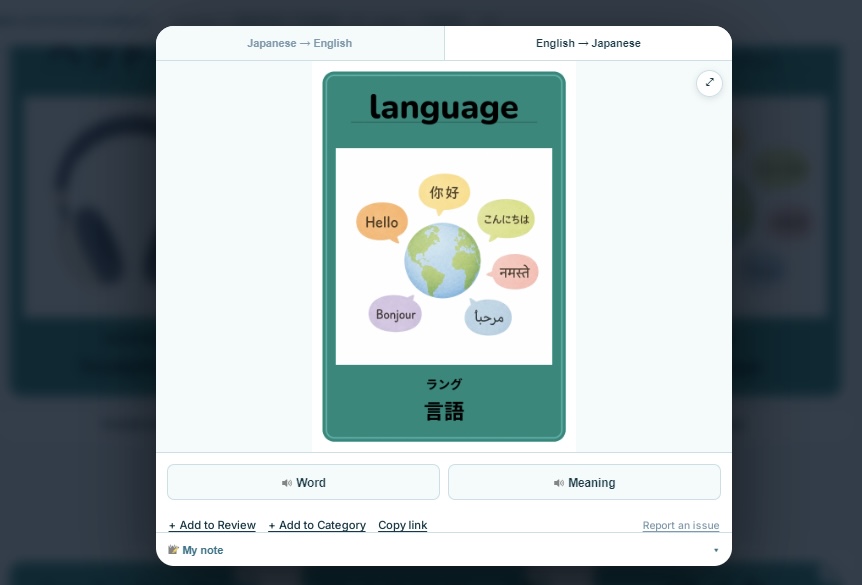
Start by exploring our visual flashcards.
Each flashcard includes:
- A carefully designed illustration that represents the concept.
- The word in your target language.
- Its pronunciation.
- The translation in your native language.
- Related words and word forms to expand your vocabulary.
Study the cards at your own pace or review them regularly to strengthen long-term memory.
2. Use the Visual Dictionary
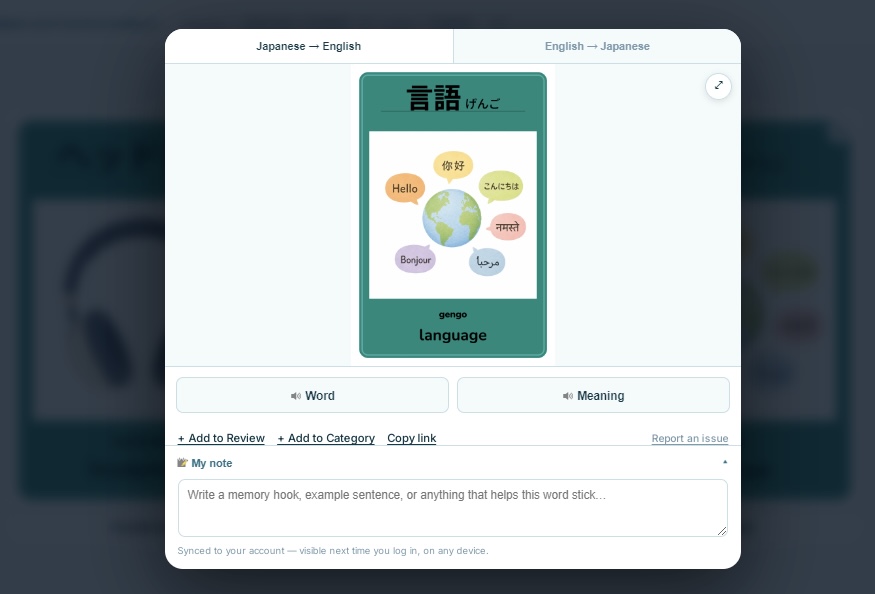
Need to look up a word quickly?
Simply search for any word or concept in the Visual Dictionary.
Each entry brings together:
- A memorable illustration.
- Pronunciation and audio.
- Meanings and translations.
- Related vocabulary.
- Common word forms and inflections.
- Example sentences showing the word used in context.
The Visual Dictionary is designed to help you understand not just what a word means, but how it is used in everyday language.
3. Learn While You Browse
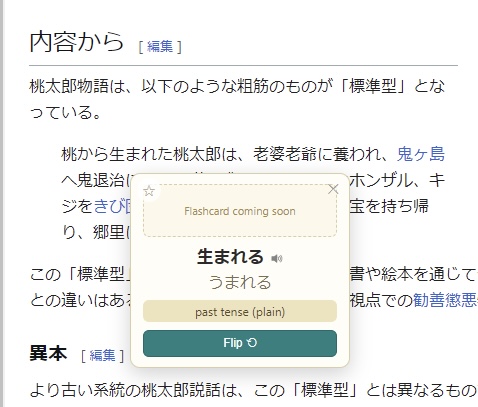
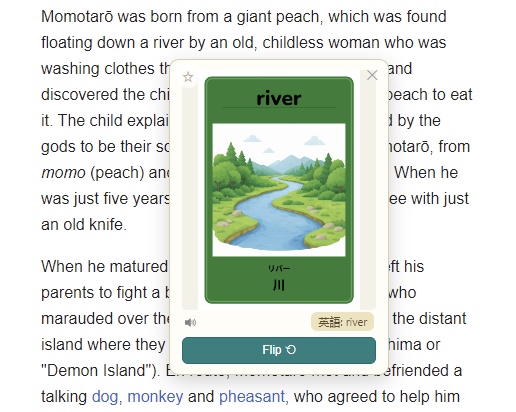
Install the Picture The Words Browser Extension to turn the web into a language-learning environment.
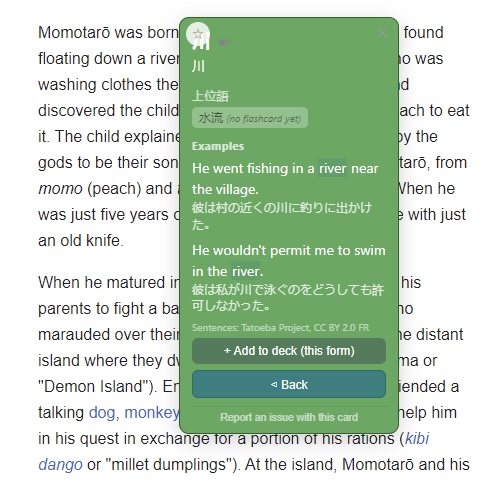
When reading websites, simply hover over a supported word to instantly see:
- Its illustration.
- Translation.
- Pronunciation and audio.
- Lemma (dictionary form) and inflection.
- Related words.
- Example sentences.
This lets you understand unfamiliar vocabulary without interrupting your reading.
Works alongside Yomitan. If you already use Yomitan for on-page lookups, you can keep using it — the two don't conflict. Yomitan is great for deep dictionary detail; Picture The Words is focused on visual memory and flashcards, so they complement each other well.
If pronunciation doesn't play for a word. The 5,000 curated concepts always have real recorded audio. A word you hover that isn't one of those 5,000 is looked up in a much larger dictionary instead, and its pronunciation is spoken by your own device's built-in text-to-speech rather than a recording — so it needs a voice for that language installed on your system.
On a Mac: System Settings → Accessibility → Spoken Content → System Voice → Manage Voices… and add a voice for the language you're missing. Windows has the equivalent under Settings → Time & Language → Speech. Most systems come with at least one English and Japanese voice already installed, so this is only needed if pronunciation for dictionary-only words stays silent after checking your volume.
4. Save Words to Your Flashcards
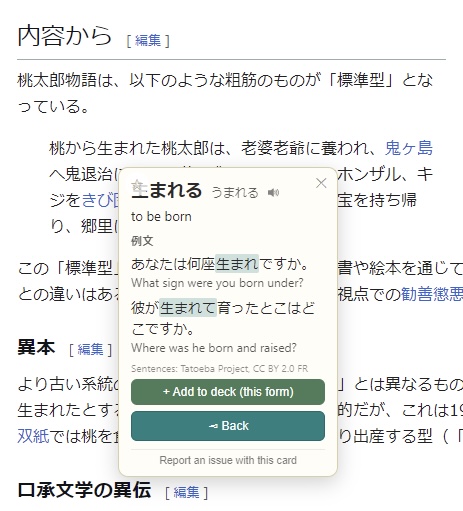
Found a useful word while browsing?
With a single click, save it directly to your personal flashcard collection.
Your saved words can then be reviewed later using the same visual flashcards, helping you reinforce vocabulary you've encountered in real-world contexts. Once you log in from the extension's Settings tab, saved words also sync to your account, so the same review deck is available on this website too.
If you never log in, your deck is stored only in the extension itself — which means uninstalling the extension (or resetting your browser profile) will erase it permanently, with no way to recover it. Logging in takes a moment and protects your progress, so it's worth doing early rather than after you've built up a deck you'd hate to lose.
On Phones and Tablets
Browser extensions cannot run in Chrome or Safari on iOS or Android — that is a limit of the mobile platforms themselves, not of Picture The Words. So on a phone or tablet you install the website instead of an extension, and it gives you the same lookup in a form that works with touch.
Install it: open this site in your phone's browser and choose Add to Home Screen. It then opens like any other app, full screen, with no browser bars.
There are three ways to look a word up, and all three open the same Quick Lookup panel with your text already filled in:
- Quick Lookup — tap the magnifier in the top bar and type or paste. If you have already copied something, it offers that straight away.
- The share sheet — on Android, select text anywhere, tap Share, and choose Picture The Words.
- The bookmarklet — for iPhone and iPad, where apps cannot register a share target. Save it once from the bookmarklet page, then select text on any page and tap the bookmark.
Reader Mode goes further for longer passages: paste in a Japanese article at Reader Mode and every word becomes tappable. Tap once for the meaning, twice to send it to your review deck.
One honest difference: hovering is a mouse gesture, so the extension's "hover anything on any page" behaviour has no touch equivalent. Selecting a word and sharing it is the substitute.
What Each Language Covers
All four languages — Japanese, English, Hindi and French — work the same way across the 5,000 curated concepts, in all twelve direction pairs. Every one of those has its illustration, recorded audio, meanings, inflected forms and related words, whether you meet it on this site, in the extension, or through Quick Lookup on a phone.
Where the languages differ is what happens outside those 5,000 words, when you look up something PTW does not teach:
- Japanese falls back to a full dictionary of 432,572 entries, so almost any word you meet while reading will return something.
- English falls back to a reverse dictionary of 225,157 entries, giving the Japanese for an English word.
- Hindi falls back to 22,456 headwords, inverted from the FreeDict English–Hindi dictionary, which was compiled at IIIT Hyderabad. Most entries carry an example sentence as well as the translation.
- French falls back to 57,093 headwords from WOLF, the Wordnet Libre du Français, mapped onto Princeton WordNet — so a French word gives you both its English equivalents and a definition explaining the sense, not just a one-word swap. Unlike the other three, this one was assembled automatically rather than compiled by people, so it is right most of the time rather than all of it; see Sources & licences. The 5,000 curated concepts are unaffected — those were translated and reviewed by people.
Inflected forms are handled, so you do not have to know the dictionary form before you look something up: mangeons finds manger, heureuse finds heureux, and किताबों finds किताब.
The two fallbacks differ in size for a simple reason: open, freely licensed dictionaries are far larger for Japanese and English than for Hindi. A Hindi word outside both the curated 5,000 and those 22,456 will still come back empty — that is the honest boundary today, and it is worth knowing before you rely on it.
Grammar is handled as its own category rather than as a dictionary lookup: function words — pronouns, postpositions, question words, quantifiers, negation — are taught as their own concepts, chosen for whether they exist across many of the world's languages rather than for how common they are in English, and each is explained from the language you know into the one you are learning.
Learn Naturally
Rather than memorising isolated word lists, Picture The Words helps you connect images, sounds, meanings, and real-life usage to create stronger, longer-lasting memories.
Whether you're studying with flashcards, searching the Visual Dictionary, or discovering new words while browsing the web, every interaction builds your vocabulary in a natural and engaging way.